Cephalon Kronos

An open-source, cross-platform companion app for Warframe to track your inventory, relics and rivens, monitor foundry progress and stay up to date with the worldstate.

Features

Inventory

Comb through your automatically updated inventory with filters and track pending items in your foundry.
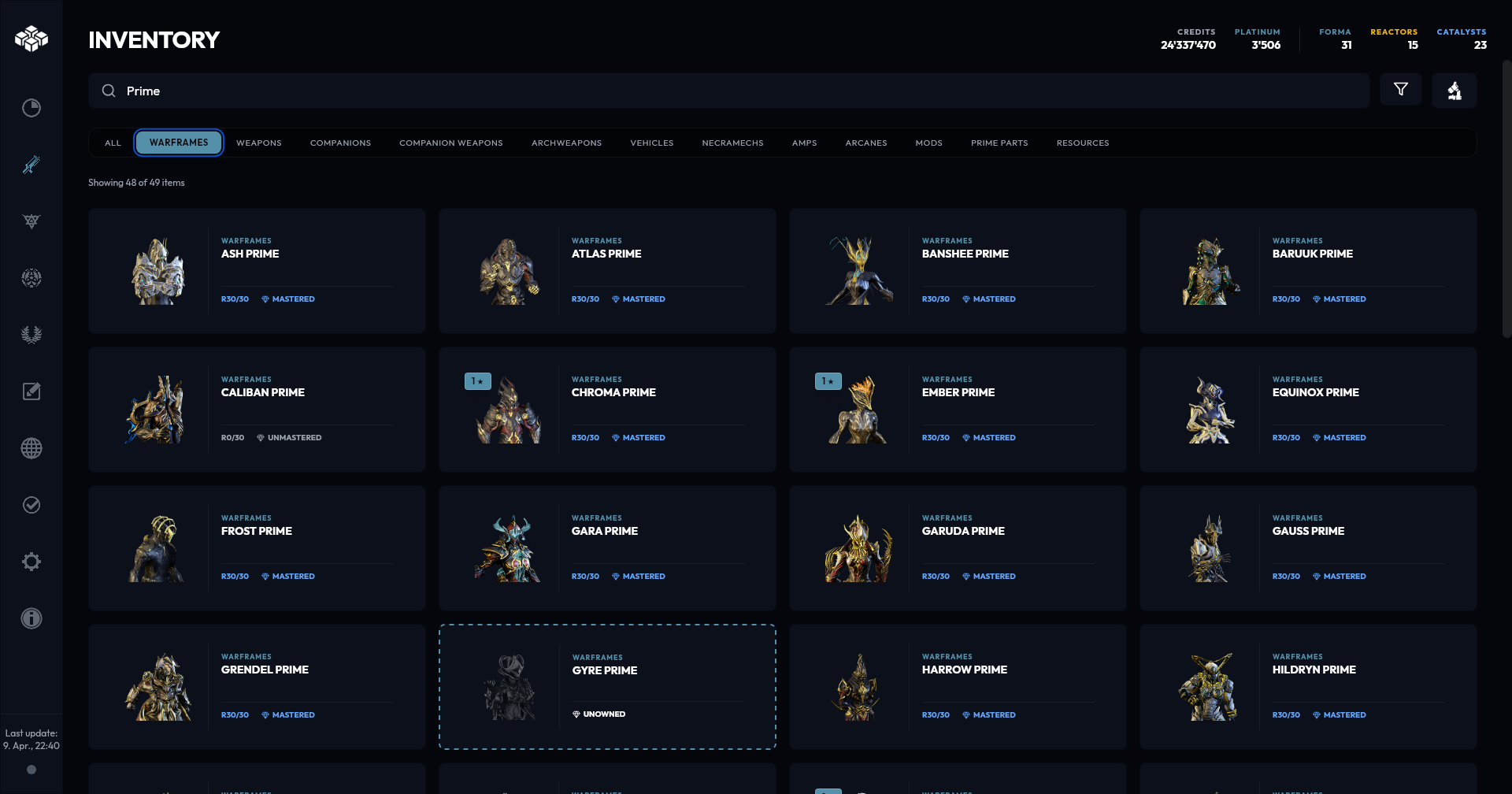
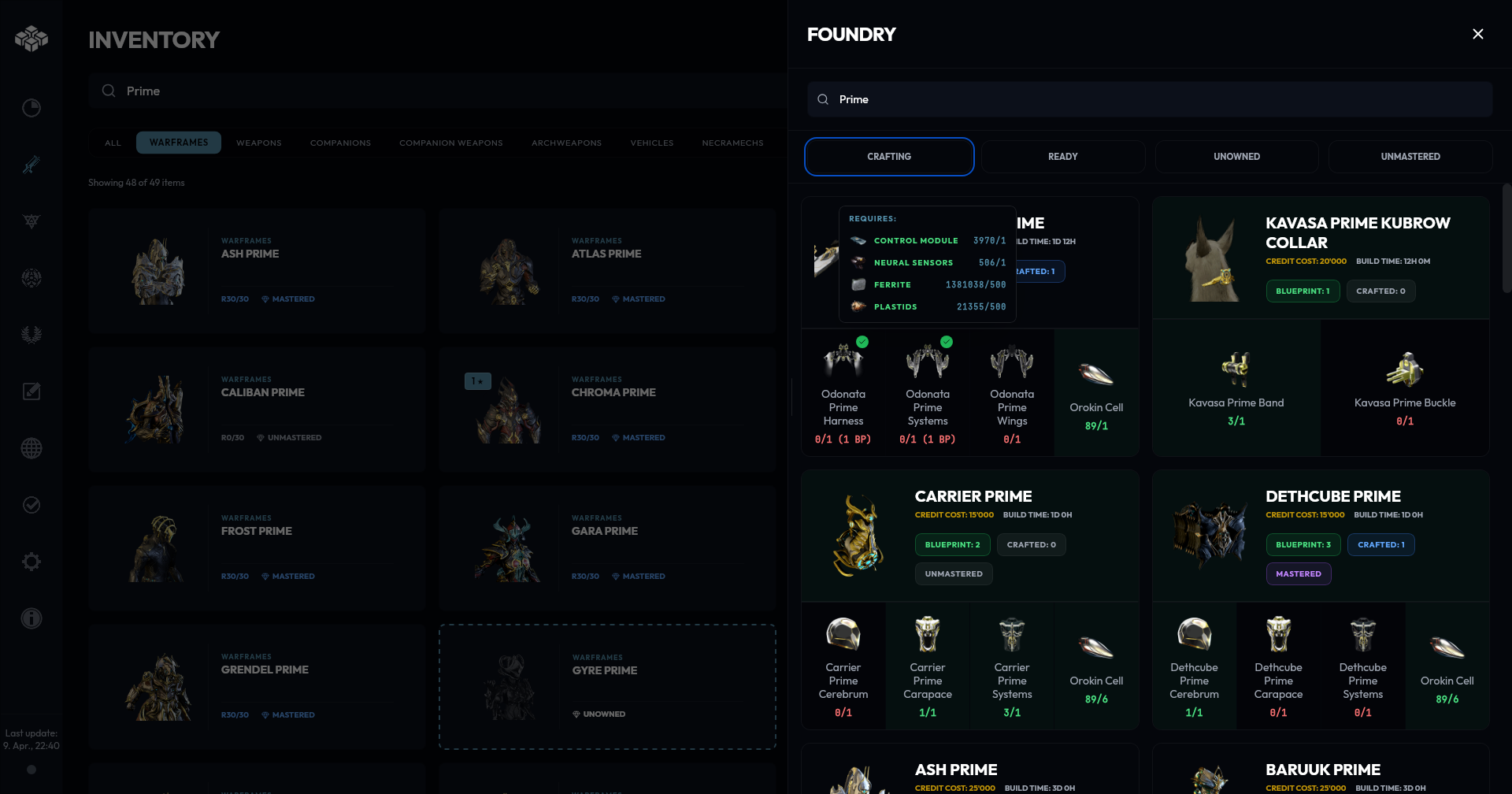
Inventory Sync Inventory Sync

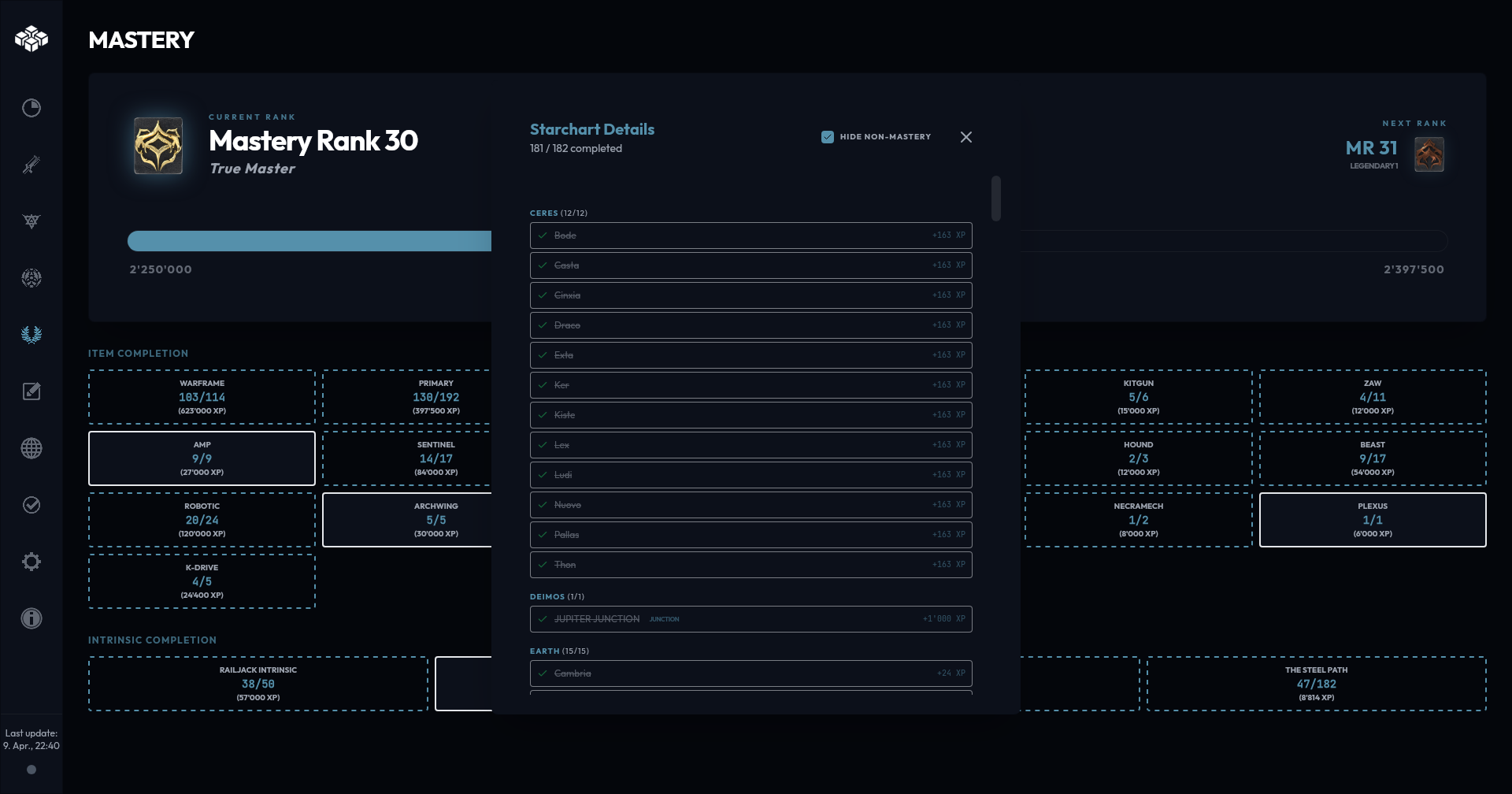
Mastery Progress

Displays your mastery progress with categories and shows everything yet to be mastered.
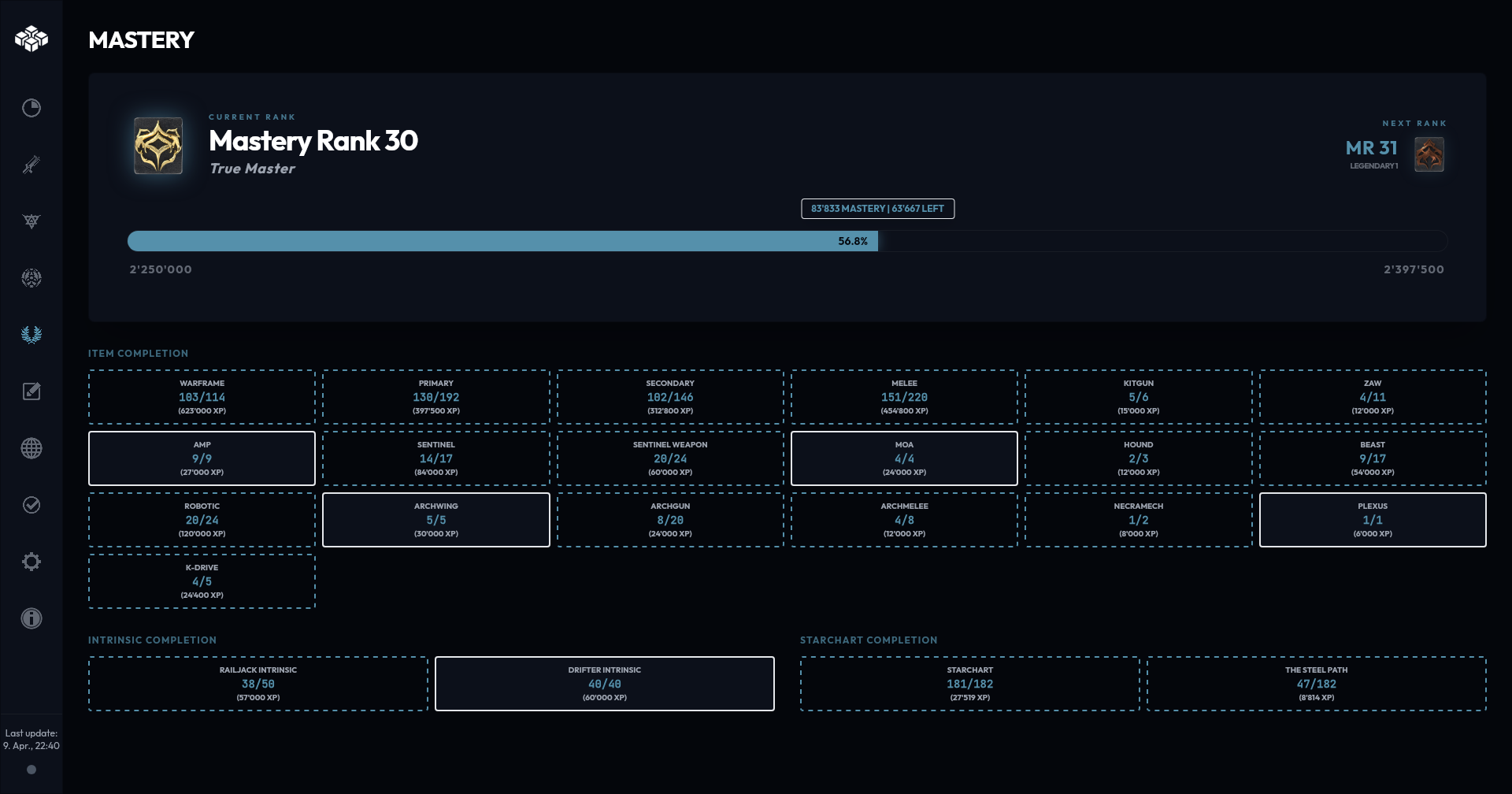
Mastery Progress Mastery Progress

Dashboard

Provides live updates on alerts and events, world timers, fissures and arbitrations.
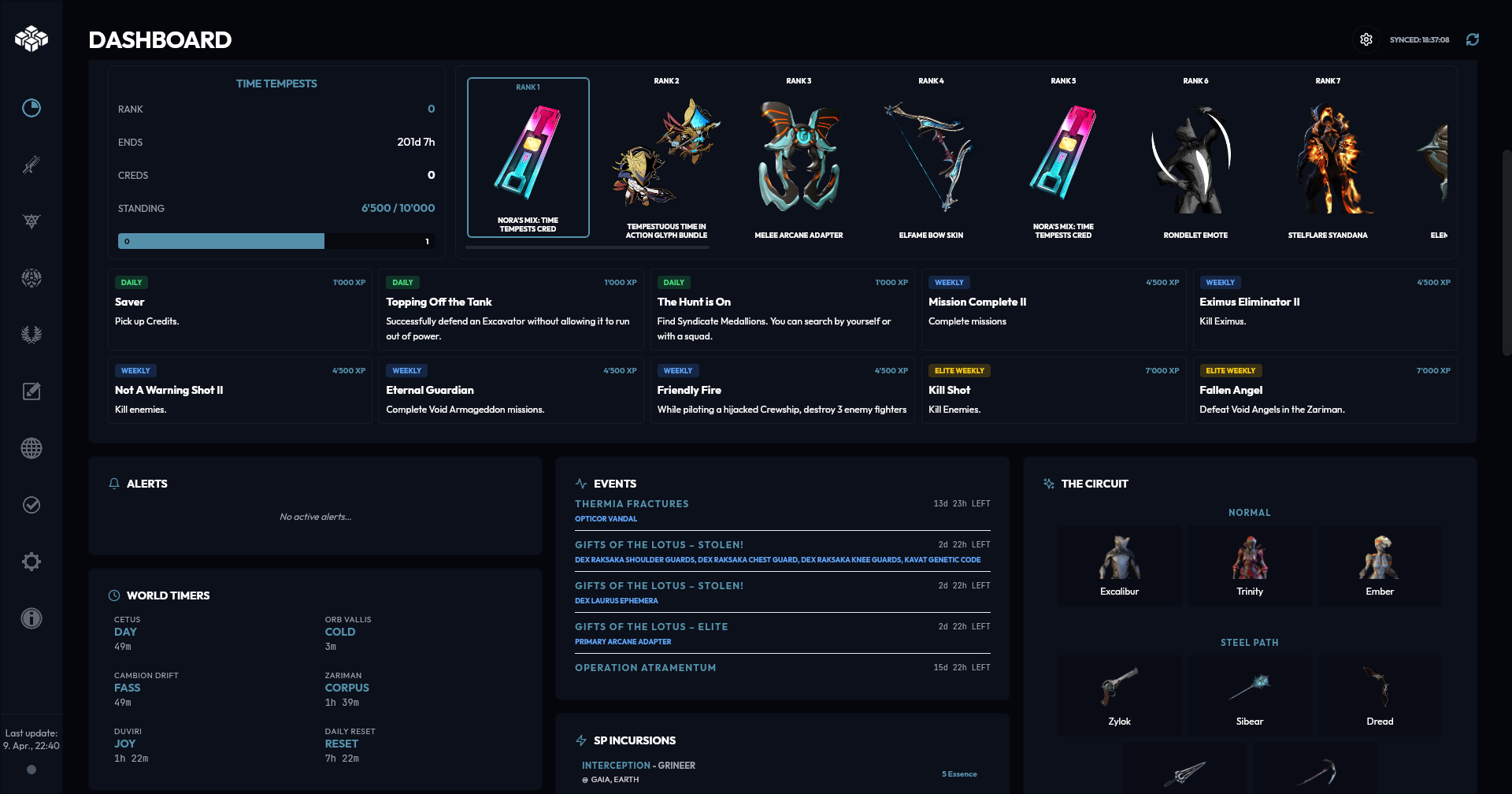
Dashboard

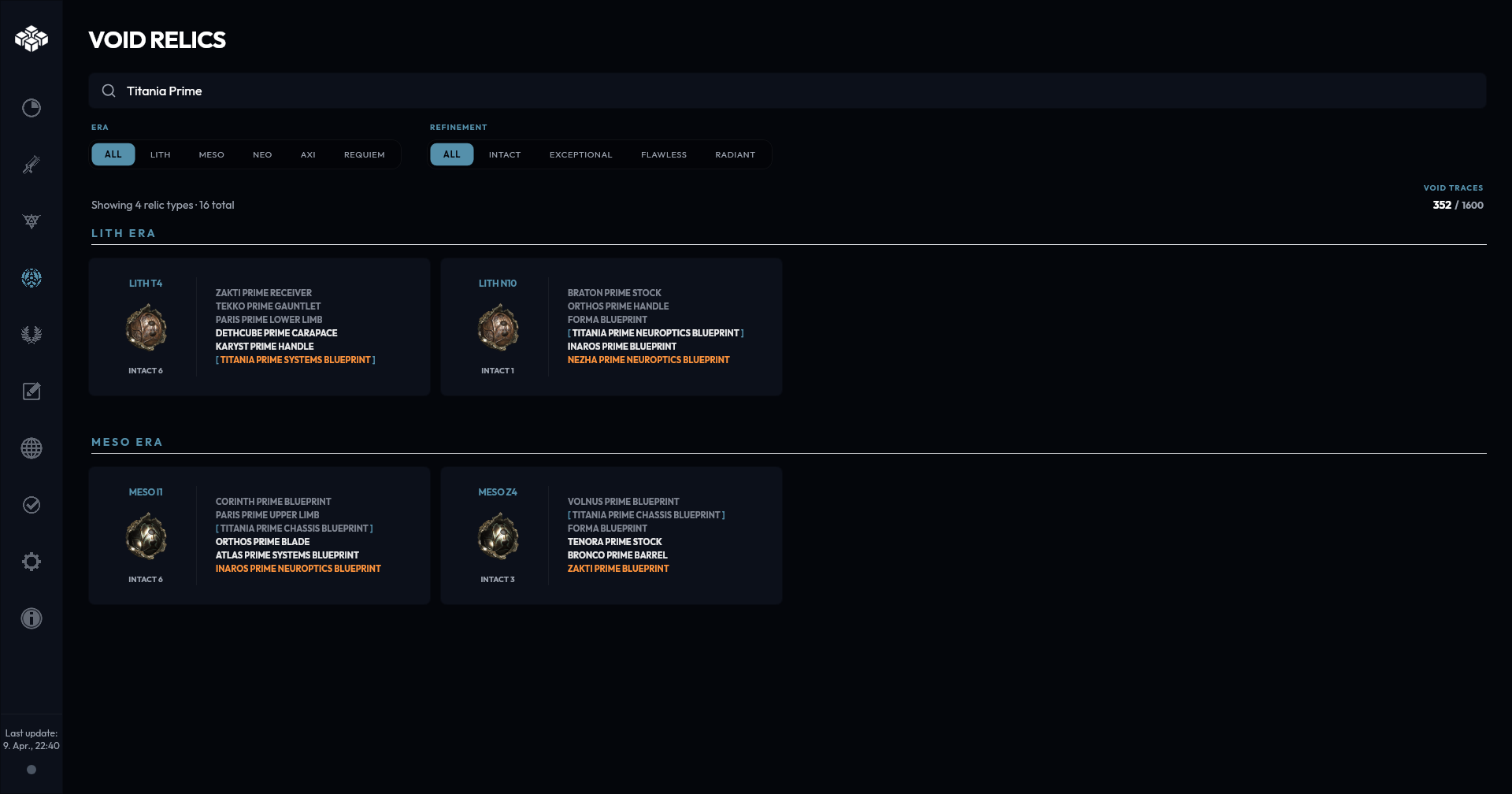
Relic Tracker

Track your relics and refinement and search for their drops.
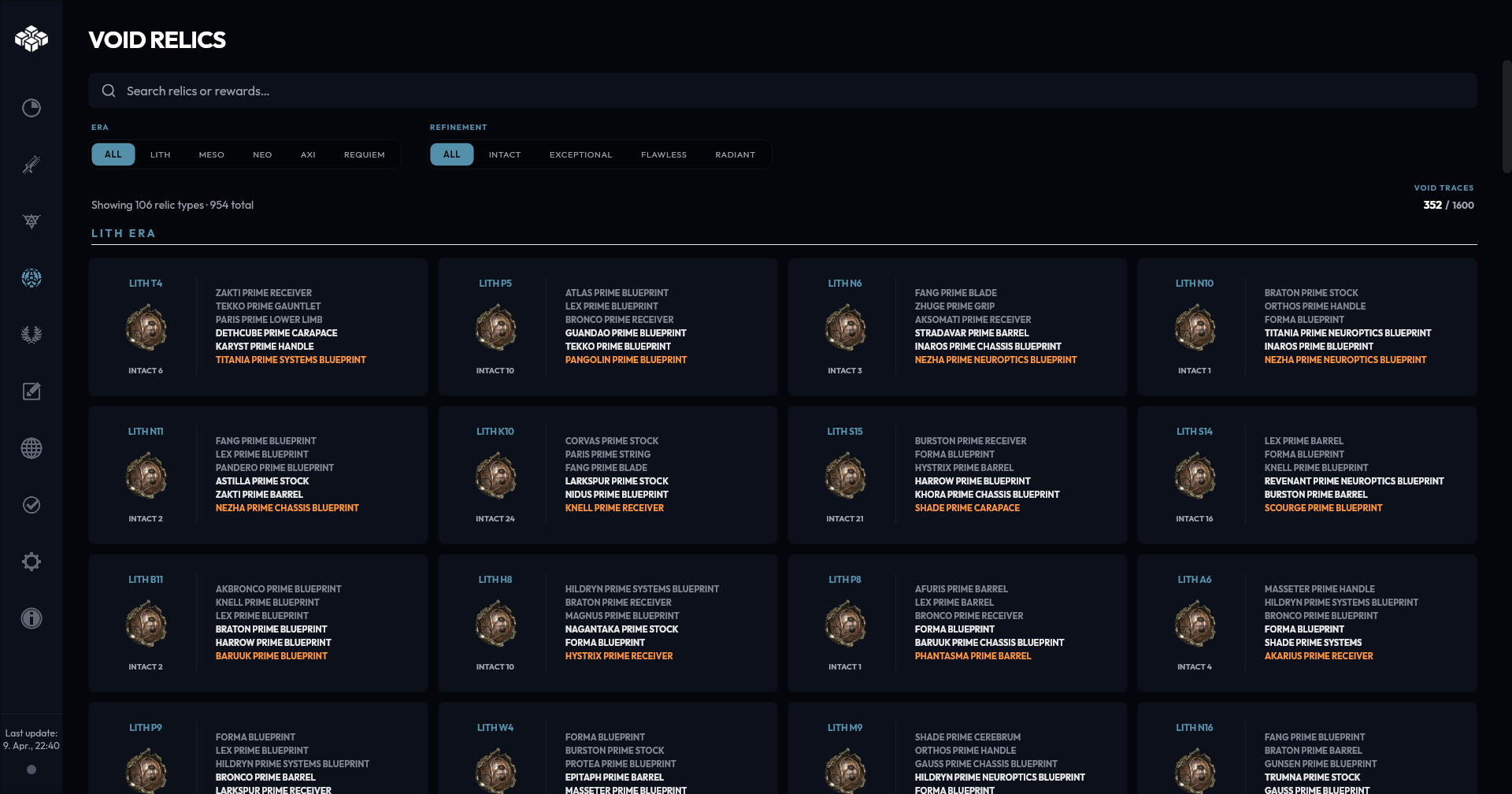
Relic tracker Relic tracker

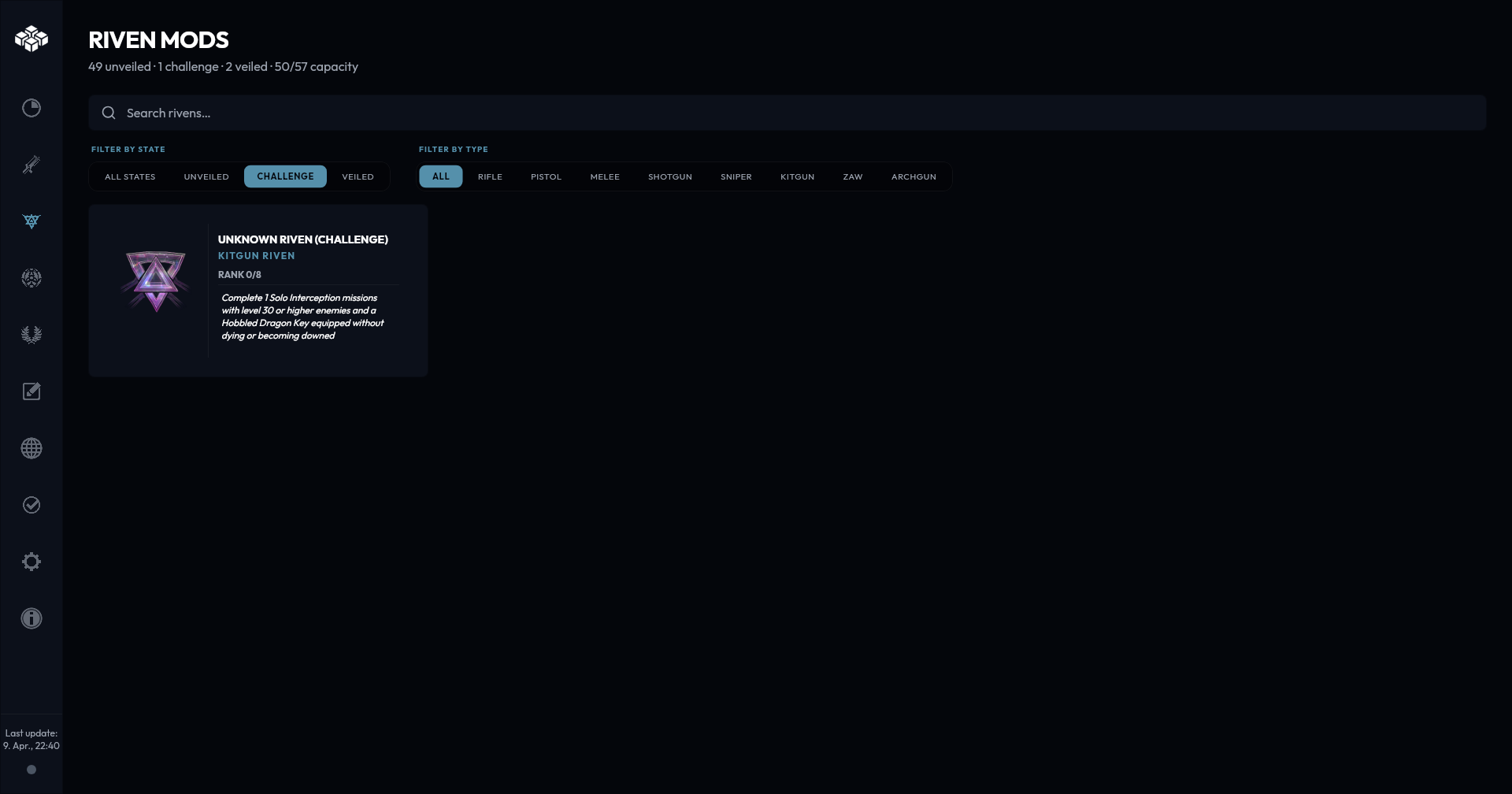
Riven Tracker

Track your riven mods, inspect their stats and see challenges of veiled rivens.
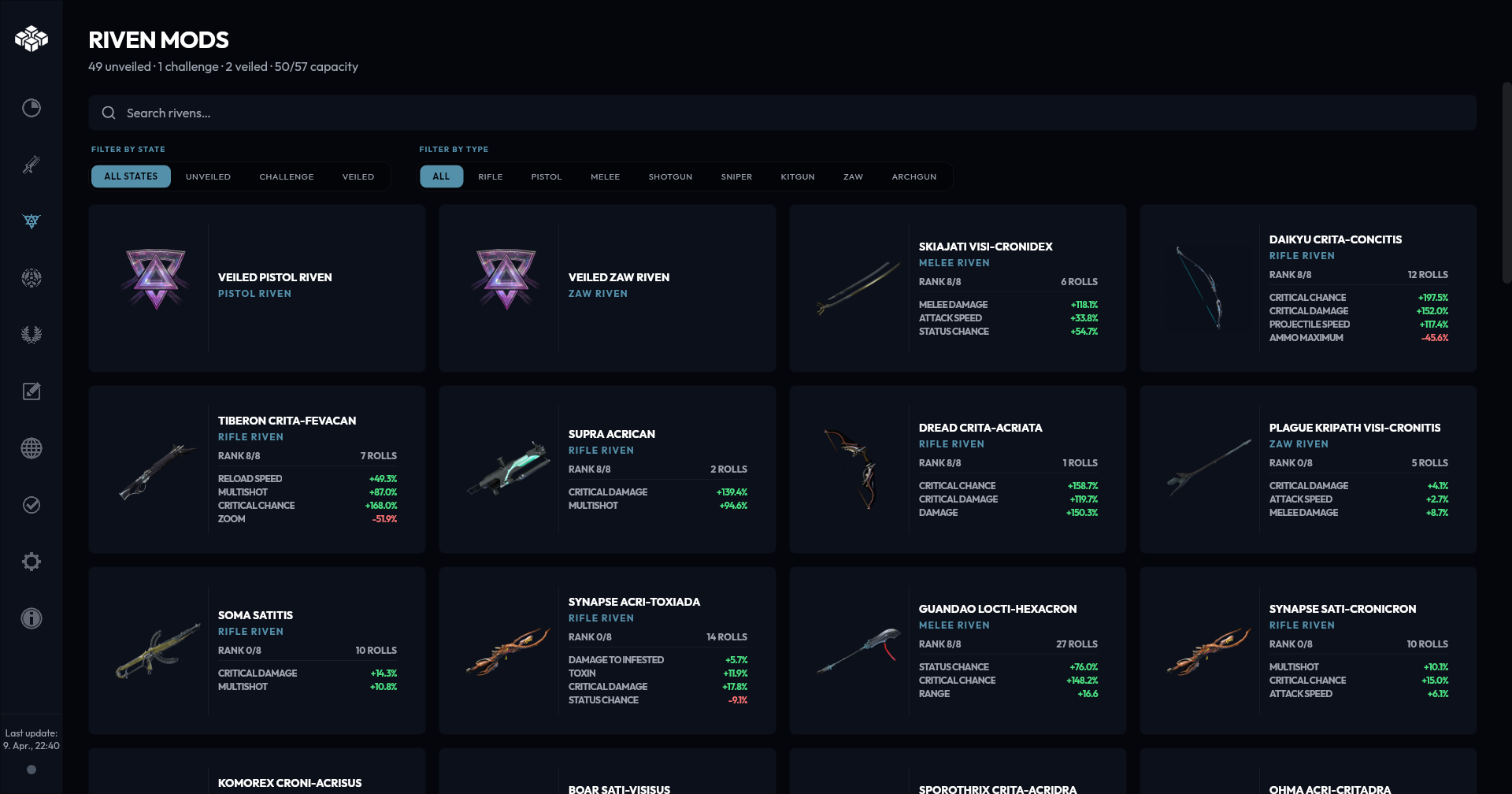
Riven tracker Riven tracker

Markdown Notes

Write down notes, farming goals, strategies or paste in guides from elsewhere to make use of the markdown support.
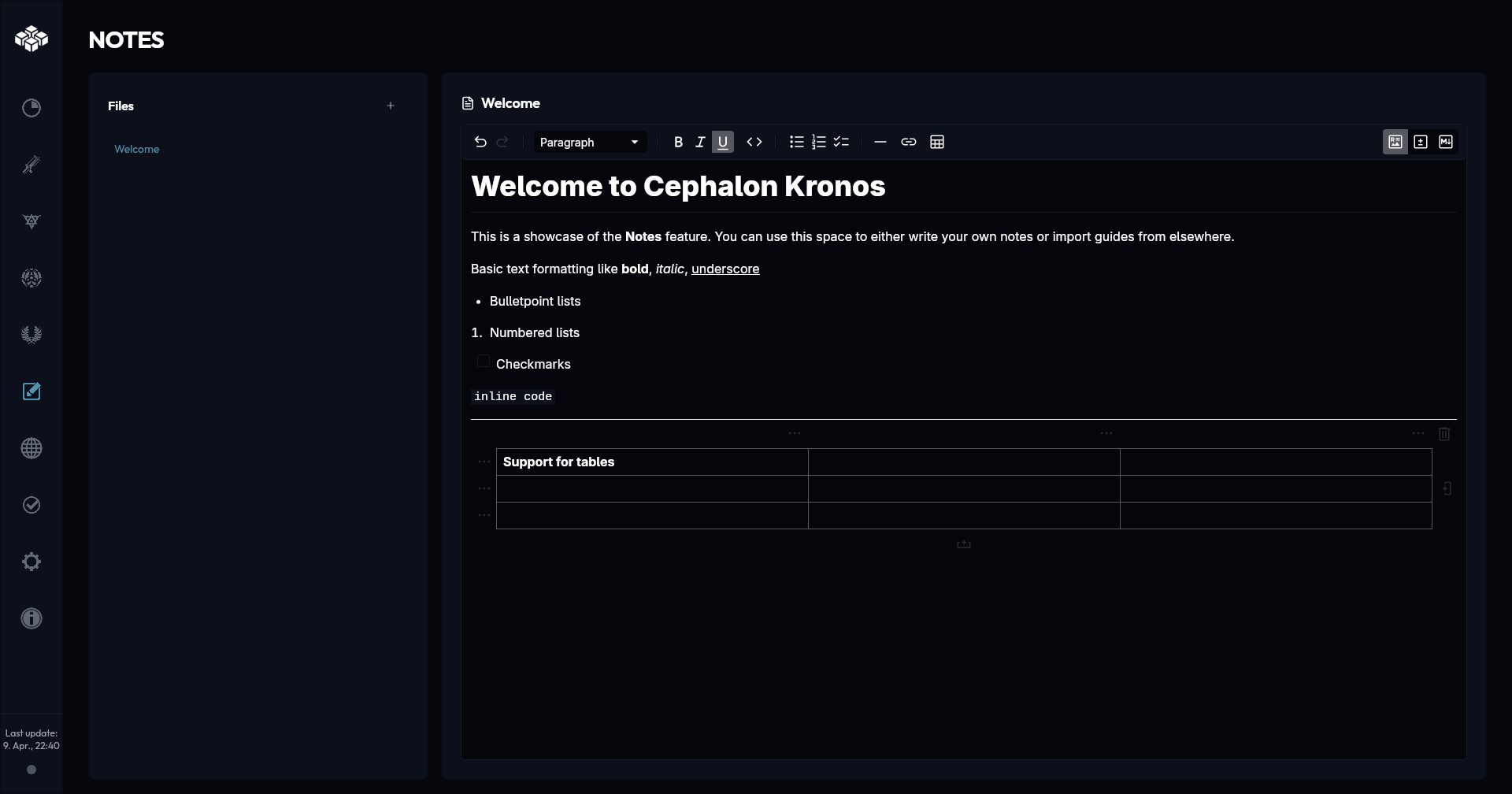
Markdown Notes

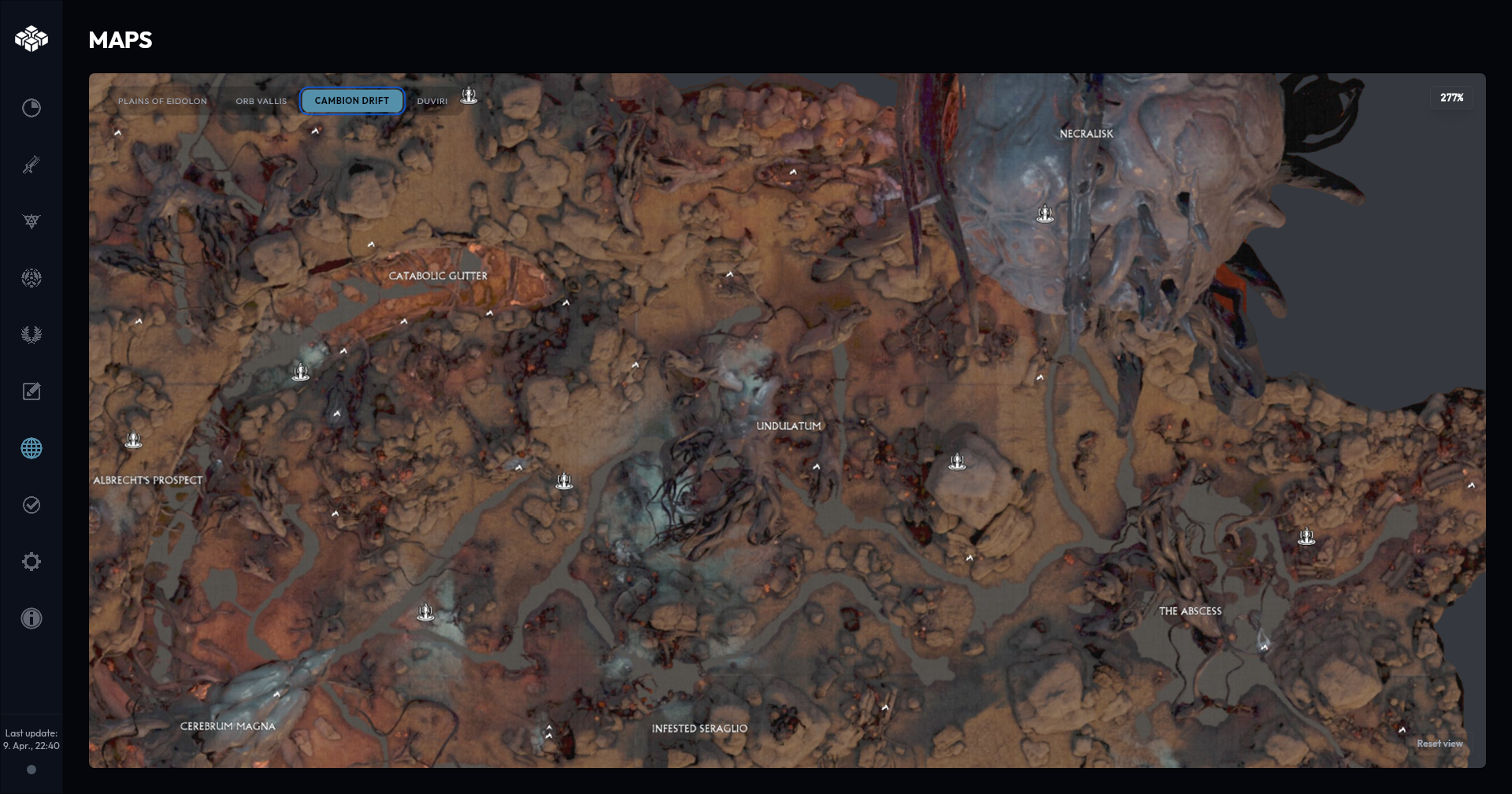
Maps

Check out the maps of all open worlds.
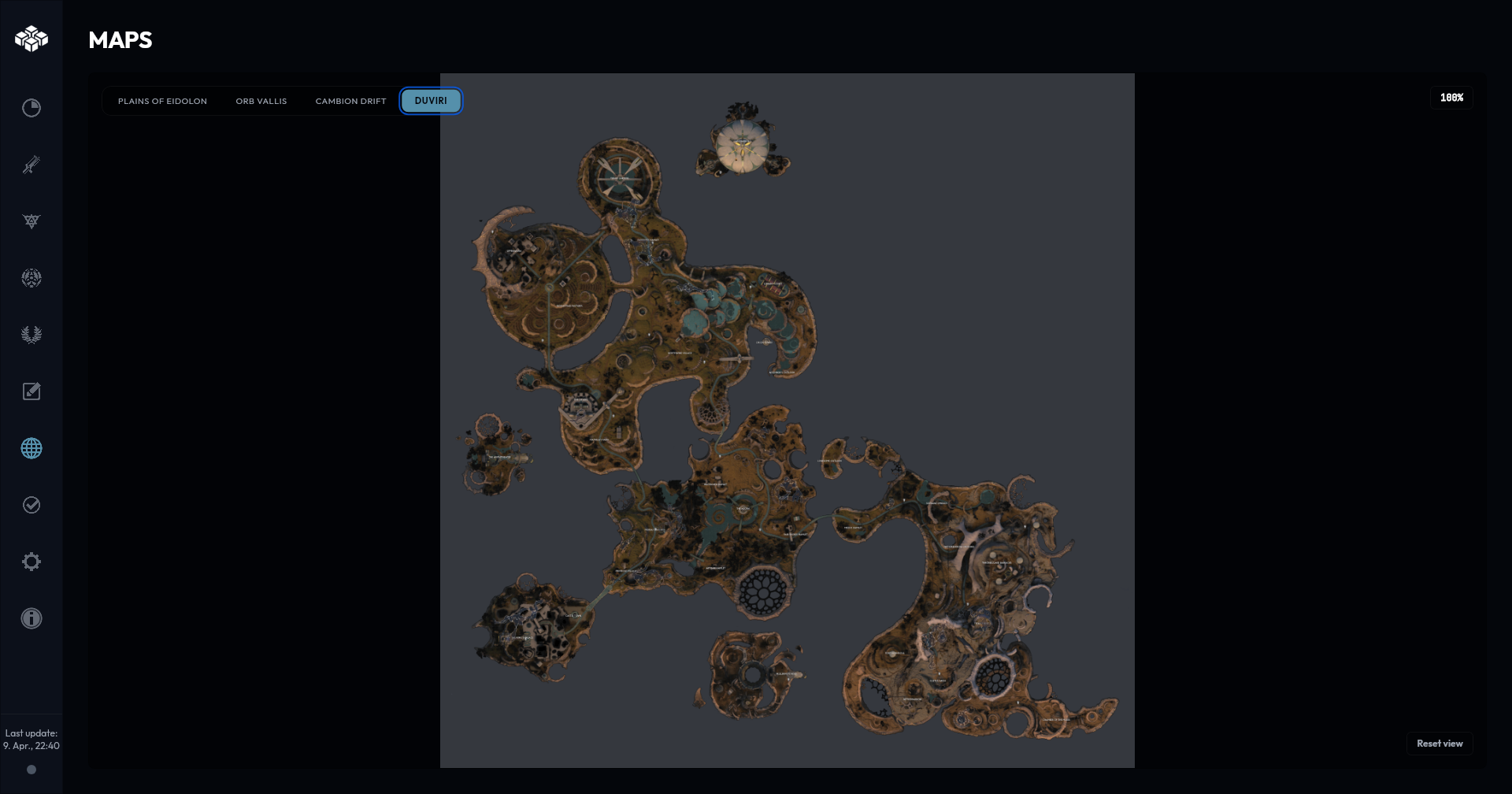
Maps Maps

Checklists

Track your progress on daily and weekly tasks.
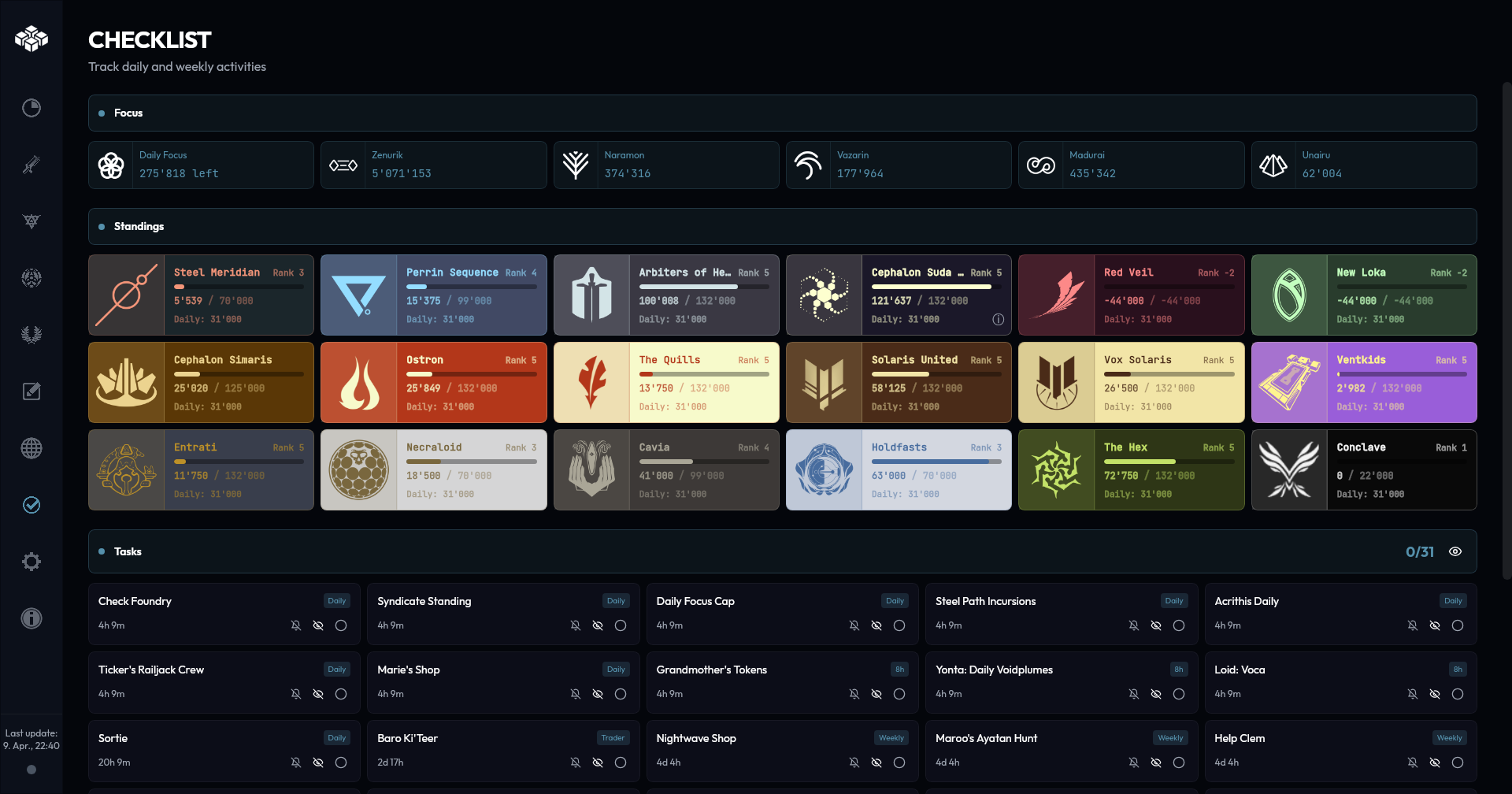
Checklists

Theme and Overlay Support

Choose between multiple color themes to match your preference. You can also enable overlays to receive notifications.
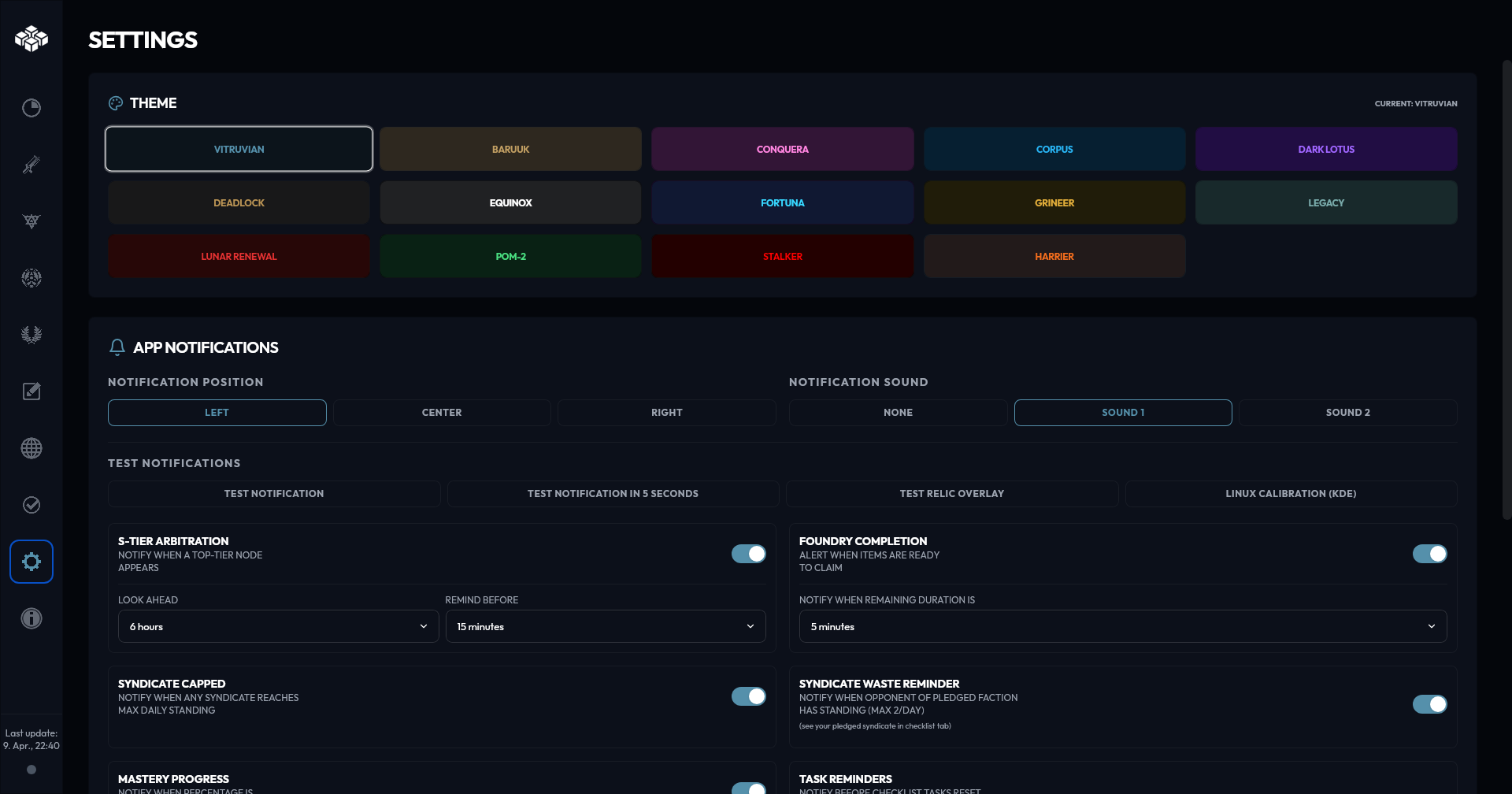
Theme support

Frequently Asked Questions

Getting Started

  1. Navigate to the releases page.
  2. Download the appropriate binary for your OS.
    (.exe for Windows, .deb/AppImage for Linux or .dmg for macOS).
  3. Create a folder for the binary (recommended).
  4. Run the binary to launch the app.

Privacy & Security

Cephalon Kronos was made to provide functionality without compromising privacy. Because of this, it does not send any information over the internet.

  • Does not require any account sign up.
  • Does not modify game files.
  • Disclaimer: This application makes use of warframe-api-helper to fetch session credentials which are then used to download inventory data from the game servers. While it does not inject or alter memory, use it at your own discretion.

Troubleshooting

"My inventory is empty!"
This is expected at first startup. The application needs data to parse through, which means that you either need to initiate a manual scan via the settings, or turn on continuous monitoring.

"Do I have to turn on Live Monitoring?"
No, you do not have to turn on Live Monitoring. You can manually scan your inventory once via the settings. This will give you a momentary state of your inventory data, which the application will show (even if offline) until said data is refreshed by either another manual scan, or by turning on Live Monitoring.

"I found a bug!"
Great! Please report it on the issues page with as many details as possible.